A finished creative is only useful once your team can test it.
Your creative team has finished six new hooks. The files are approved, but the tests are waiting for campaign setup. By the time they run, another batch has arrived and the team is already asking which ideas deserve more production time.
Getting assets into delivery is only half the problem. If naming, audiences, or reporting windows differ between batches, the later comparison becomes harder to interpret. A useful creative process connects the brief, the approved assets, the launch setup, and the evidence review.
Make the handoff from creative to campaign repeatable
Superlaunch’s Launcher supports approved creative versions, collections, and reusable templates. Your team can use that structure to prepare a batch, review the proposed campaign, and repeat the process on a schedule. Insights then gives your agent the data for a consistent review of what delivered.
Ask your connected AI agent to help with the workflow below. Use the Superlaunch app to connect accounts, select media and inspect the results. Try the AI agent prompts.
Test a new batch of product hooks each week
Your creative team produces new versions for one product and market. You want to run them with the same campaign setup, avoid selecting old assets again, and use the results to brief the next production cycle.
The following is an illustrative workflow you can adapt to your account.
From source files to a running launch workflow
Bring in the files from your computer or Google Drive
Imagine a weekly batch split between a designer’s exported videos and a shared Google Drive folder. Open Launcher’s creative import area to bring those files into Superlaunch. For a file on your computer, choose Upload files, select one supported image or video at a time, and wait for the upload to finish. The file chooser accepts JPEG, PNG, WebP, MP4, and QuickTime. The uploaded media is then available to add to a draft creative in Library.
For Google Drive, connect the source and select the files you want Superlaunch to use. You can add the import to an existing active fixed collection. Choose Import selected files and follow the per-file results while the import runs. A Drive import creates media and draft creatives, so you review and complete those drafts rather than creating the same creatives again. Importing a file does not approve it for launch.
Drive access applies to the files you select. Choosing a folder does not share all of its contents or automatically import next week’s files. Select each new batch. Upload or select the files in Superlaunch first. Then ask your agent to work with that batch.
Turn the assets into creatives your team can approve
A video file is an asset; a launchable creative also needs the advertising content that goes with it. In Library, create a draft with your uploaded media, or open the draft from a Drive import. Complete the ad copy, headline, destination, and other required fields. Give it a name your team can recognize, such as “Summer offer – product demo – English”.
Review all language versions and choose Approve whole version before launch. Launcher uses the latest approved version for a standard test launch, so check that content in the launch preview. A new draft does not replace the approved content until you approve it.
Create a collection for this batch or a repeatable selection
Create a fixed collection when you want to choose the exact creatives for a specific batch, such as this week’s approved product hooks. Use a smart collection when you want saved filters, such as text in the creative name, to find the batch. Collection preview shows matching creatives, which can include drafts. Launch preparation checks which have eligible approved versions.
A schedule made from a fixed collection keeps the creatives selected when you saved it. Adding more creatives to that collection does not update the schedule. A smart schedule uses its saved filters to find new matches. Review the schedule when you change the batch or testing plan.
Save the campaign setup in a template
Create or choose a template for the selected ad account. Configure the campaign objective, audience, placements, destination-related settings, naming, and budget appropriate to the test. Select the template version you want to use. Set the account’s Launcher campaign and budget limits before the first launch preview.
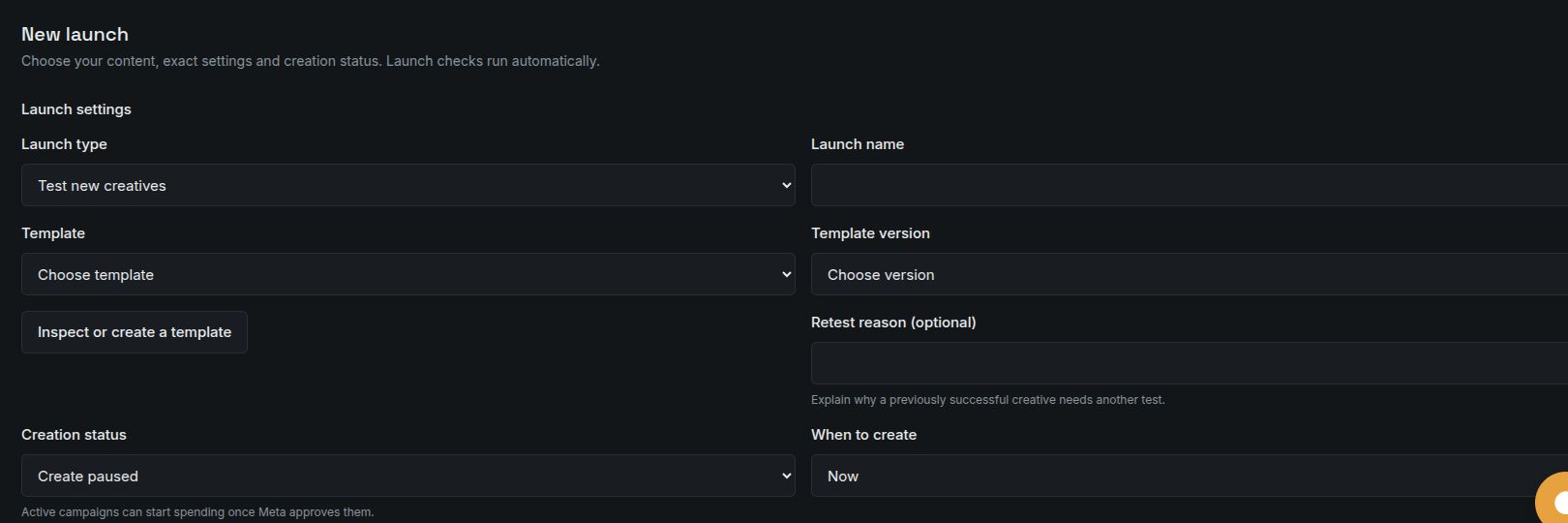
The template removes repeated setup, while the preview gives the buyer a chance to check the actual batch. Inspect the proposed campaign structure, selected creatives, and budgets. Choose Create paused if someone should review the campaigns in Meta before activation.
Run a one-time launch now or at a future time
For a product promotion or a single creative batch, ask your agent to prepare a launch using the collection and template names. In When to create, choose Now to submit it for creation, or At a future time to schedule that one launch. The future-time control uses your browser’s time zone. Review both the creation time and the creation status.
Those settings answer different questions. A future creation time controls when Superlaunch creates the campaigns. Create paused means the new ads remain paused until activated; it is not an instruction to start delivery at the creation time. After submission, check the execution result and any failed items before calling the launch complete.
Create a recurring launch for the next approved batch
For an ongoing Test new creatives workflow, choose Repeat automatically. You can schedule repeated tests from a collection. Promotion and refresh are separate, one-time operations. Choose a daily, weekdays, weekly, or advanced cron schedule. Set the time zone, maximum creatives per run, and maximum exposure per run. Maximum exposure checks the combined budgets created by that run: daily amounts for daily budgets, or lifetime amounts for lifetime budgets. For example, three ad sets at £20 per day have £60 of configured daily exposure. It does not cap actual spend or the total across repeated launches. Review the saved template version and creative selection before enabling the schedule.
Each run selects eligible unused creatives. A smart schedule can pick up newly approved creatives that match its saved filters; a fixed schedule keeps the selected batch. A schedule also keeps the template settings you saved. Later template edits do not update it. Check the run history: missed runs and runs that overlap an unfinished run are skipped.
For the weekly hook-testing example, the team selects new Drive files or uploads local media, completes and approves the resulting creatives, and checks that they match the smart schedule’s criteria. The buyer reviews the scheduled run and its result. Pause or update the schedule when the account, offer, or testing plan changes.
Use the results to decide what to test next
Once the ads have enough delivery, compare their results in Insights using equivalent reporting periods, the same conversion event, and consistent attribution settings. Ask your agent to flag creatives with too little spend or delivery to support a conclusion.
Launcher also offers Promote successful tests and Refresh an existing ad set. Use those when you want to carry selected test creatives into another launch or introduce selected creatives into an existing ad set. A successful launch means the creation completed; it does not establish that a creative is profitable. Let performance evidence and the team’s judgment guide what you promote.
AI agent prompt examples
Connect your AI agent to Superlaunch, then try these prompts in your conversation. Replace the names and example values with your own. Use account, collection and template names; the agent should find them and ask you to choose if more than one matches.
Prepare this week’s creatives
For [account name], find the files from [batch name] that I uploaded or imported from Google Drive. Help me turn them into draft creatives using our saved brand brief. Ask for any missing copy, website link or language. Show me the finished ads before approval.
Upload files or select Drive files in Superlaunch first. The agent can find the uploaded media and reuse drafts created by the Drive import.
Approve and organize the batch
Approve the creative versions we just reviewed. Put them in a collection called [batch name]. Show me which creatives are included and flag anything that is not ready to launch.
Send this after reviewing the complete ads, including their language versions. The agent resolves the creative references from the conversation.
Preview a launch
For [account name], prepare a launch using [collection name] and [template name]. Show me which saved template version you will use, the ads, targeting and budgets. Check the account’s launch limits and ask me about anything missing. Keep the campaigns paused and show me a preview first.
Use the names you see in Superlaunch. If you have no template yet, ask the agent to help create one from your campaign brief.
Launch now or choose a date
Create the launch we just reviewed tomorrow at 09:00 Europe/London, with the campaigns paused. Show me the scheduled time and where I can check the result. If the setup has changed, show me the differences before creating it.
Replace the time and time zone, or say “create it now”. Return after the run and ask, “Did the launch we scheduled complete?” Paused campaigns need activation before delivery.
Test new creatives every week
For [account name], create a smart collection matching creatives whose names contain [batch text]. Show the matches and check which have approved versions ready to launch. Use [template name] to test up to three unused creatives every Monday at 09:00 Europe/London, creating campaigns paused. Show the combined budgets the run would create and ask me to approve a maximum per run. Show the matching creatives and schedule before enabling it.
A smart collection finds creatives using saved criteria. Review the example count, time zone and budget limit for your account. This limit checks the combined configured budgets, not actual spend. Each new media batch still needs importing and approval.
Decide what to test next
Review last week’s launch for [account name]. Did all the ads get created? For those that ran, compare spend, purchases and cost per purchase. Flag ads with too little data to judge, and recommend what to test next. Show a preview before promoting any creatives or refreshing an ad set.
If your account measures another conversion, name it instead of purchases. The agent should check the available data and explain the comparison.
Before you rely on the result
This workflow standardizes creative launches and comparisons. It does not create a randomized A/B experiment or establish that a creative caused a performance change. Audience, delivery, timing, and attribution can affect the comparison.
A useful first step
Start with one product, one market, and a batch your team has reviewed. Keep the setup and review period consistent so you can learn from the process before increasing creative volume.
Your team has a repeatable handoff from approved creative to launch, followed by a performance review that can inform the next brief.
Read the setup documentation