Your next creative batch is ready. Your campaign setup is not.
It is Monday morning. The creative team has delivered a new batch, the US campaigns need attention, and the weekly review is approaching. None of these tasks is unusual. The difficulty is keeping them connected as your team adds accounts, markets, and creative volume.
Your marketers may already use an AI assistant to analyze results or draft a testing plan. But if someone still has to export the data, explain the account again, rebuild the campaign, and check whether the changes happened, much of the operational work stays with the team.
Connect launches, daily checks and reporting
Superlaunch connects those pieces: Launcher gives your agent a way to prepare campaigns from approved assets and templates; autorules run defined checks on a schedule; Insights gives the agent synced account data to analyze. Your team decides the targets, reviews the setup, and checks the results.
Ask your connected AI agent to help with the workflow below. Use the Superlaunch app to connect accounts, select media and inspect the results. Try the AI agent prompts.
A weekly launch across two markets
Your team has approved a new batch of acquisition creatives for the US and UK. Your team uses separate accounts, templates, budgets, and launch times for these markets. You want consistent setup and a clear record of what ran.
The following is an illustrative workflow you can adapt to your account.
Run the launch pipeline without rebuilding it each week
Get both markets’ media into approved creatives
Your US and UK batches may arrive from different sources. Upload local image or video files into Launcher, then use the media in draft creatives in Library. For Google Drive, select the files you want to share and import them; those imports create draft creatives for review. A shared folder is not an automatic feed: select each new batch.
Complete the Facebook Page or Instagram identity, ad copy, website link, language and call to action for each market, then approve the creative. Uploading or importing media alone does not make it ready to launch. The creative team and buyer can now review a named, approved version rather than coordinate through loose files.
Use collections and templates to preserve the market setup
Use a fixed collection for an exact market batch, or a smart collection to find creatives by saved filters such as their names. Matches can include drafts; launch preparation checks which creatives have eligible approved versions. Choose a template version for each market’s objective, audience, placements, naming, and budget. Configure that account’s Launcher campaign and budget limits before the first launch preview.
A schedule made from a fixed collection keeps the creatives you selected when you saved it. For ongoing US tests, a smart schedule can find new creatives using its saved filters. Import and approve each new batch, then review which creatives are ready for the next run.
Launch once or repeat the test each week
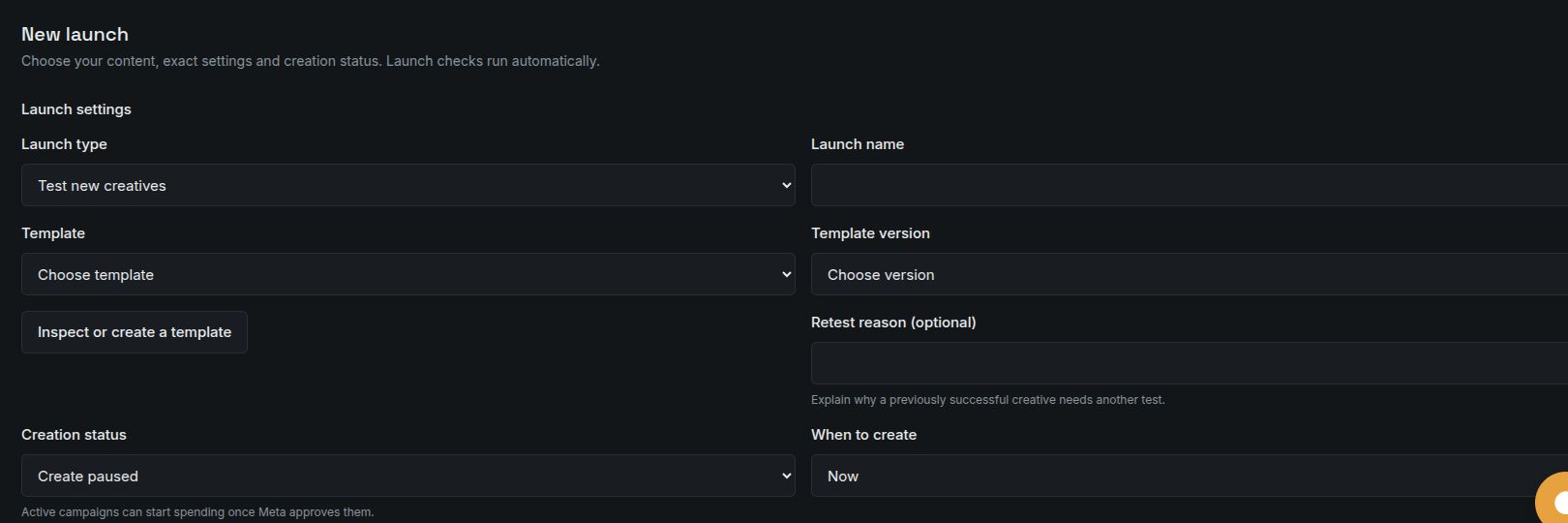
A seasonal UK offer may need one launch now or once at a future date. Launcher provides Now and At a future time for those cases; the future-time control uses the browser’s time zone. An ongoing US Test new creatives workflow can use Repeat automatically, with its own time zone, a maximum number of creatives and a limit on the combined budgets created per run. That budget limit is not a cap on actual spend across repeated runs.
Timing controls when Superlaunch creates the campaign. Creation status controls whether the new ads are paused or activated after creation. Choose Create paused when a buyer needs to inspect the campaigns in Meta first. Active delivery remains subject to Meta approval. Preview the proposed structure and budgets before submitting.
Review what ran before preparing the next batch
Recurring launches select eligible unused creatives using the settings you saved. Later template edits do not update the schedule. Missed runs and runs that overlap an unfinished run are skipped. Ask your agent what the last run created and whether anything failed.
Once your team has enough performance evidence, Promote successful tests and Refresh an existing ad set provide individual follow-up launch operations. They do not automatically identify profitable winners. Your team chooses which test creatives to promote or which creatives to introduce into an existing ad set.
For the complete walkthrough from local files and Google Drive to approved creatives, collections, and schedules, read the creative-launch guide.
Keep the account under review between launches
Once the ads are running, ask your agent to turn a repeated check into a rule: which ads to check, what to look for, how often to check and what to change. Dry run tests the rule without changing ads. Review the matches before enabling live changes. The rule must be active, have dry-run mode off and have permission to apply the action. Adapt these examples to your account; they are not recommended thresholds for every business.
Pause an ad that spends without purchases
Suppose the team wants to review ads that have spent more than $60 in a chosen reporting window without a recorded purchase. Choose the ads to check and combine the spend and purchase conditions. Test which ads match before allowing the rule to pause them.
The window and conversion event matter. Delayed reporting or a different attribution setting can change which ads match. Choose a minimum amount of evidence that fits the account, and check the rule’s recorded result before changing the threshold.
Increase budgets in controlled steps
For campaigns or ad sets meeting your ROAS target with enough spend to judge, ask for a budget increase with a maximum budget. In a USD account, for example, you could test a 10% increase with a $200 daily maximum. Target the campaign or ad set that owns the daily budget. An ad set using its campaign’s budget cannot have that budget changed independently.
If the conditions remain true, the next run may increase the budget again. Choose how often to run the rule with that in mind. The maximum limits the budget the rule sets; it does not guarantee a cap on actual platform spend.
Lower the budget when purchases become too expensive
Another rule can lower the budget when cost per purchase exceeds your target after enough delivery to judge. Choose the campaign or ad set that owns the budget, and set the lowest budget the rule may apply. Test which campaigns or ad sets match before activation.
Ask the agent to check for conflicts with your budget-increase rule. Review the results if the two rules keep raising and lowering the same budget.
Check a promotion more often
A short promotion may need hourly checks, while an established campaign needs a daily review. Ask the agent to target the named promotion and set the schedule and time zone. Superlaunch also supports weekly and custom schedules.
Scheduled checks are not instantaneous reactions to each conversion or dollar of spend. Superlaunch evaluates on the configured schedule using available data. The team still needs an owner for reviewing failed runs, paused rules, and changes to the promotion plan.
Pause or resume a selected campaign on a repeating schedule
If a campaign should pause every Friday evening and resume on Monday, ask for two rules: one to pause that named campaign and another to resume it. Specify the account’s time zone and test which campaigns each rule matches. Use separate schedules for markets with different local hours.
This is recurring rule execution. For a one-time future campaign creation, use Launcher’s At a future time option. Activation and Meta approval remain separate from creating the campaign.
Mark an item for a human review
Some findings deserve a buyer’s decision before changing delivery. A rule can add a tag to the names of matching campaigns, ad sets or ads so the buyer can find them during review. For example, tag an ad that crosses your spend threshold so the buyer can inspect its creative and conversion evidence.
A name tag is not an email or chat notification. Choose a team review routine that will actually notice the marked items.
Bring the launches and rule activity into the weekly report
Ask your agent to compare equivalent reporting periods in Insights, then summarize the actions recorded through Superlaunch. Keep observations separate from explanations: a budget change followed by better CPA does not prove the change caused it. Schedule report generation in your agent system; native Launcher and rule schedules run the supported account operations.
AI agent prompt examples
Connect your AI agent to Superlaunch, then try these prompts in your conversation. Replace the names and example values with your own. Use account, collection and template names; the agent should find them and ask you to choose if more than one matches.
Prepare a launch for each market
Prepare launch previews for [US account name] and [UK account name]. Find each market’s approved [collection name] and [template name]. Show the ads and budgets for each account, and flag anything missing. Keep the campaigns paused and wait for my review before creating them.
The agent should confirm the account names and keep each market’s settings separate.
Stop ads that spend without purchases
For [account name], help me create an hourly rule that pauses ads with more than $60 spent today and no purchases. Use the account’s time zone. Test it in dry-run mode first and show me which ads match. Do not enable live changes yet.
This example assumes a USD account that tracks purchases. Choose a threshold that fits your conversion cost and reporting delay. A scheduled rule is not an instant spend stop.
Scale ads that meet your target
For [account name], prepare a daily rule to raise budgets by 10% when the last seven days show ROAS above 3 and at least $100 spent. Target the campaigns or ad sets that own the daily budgets, keeping each at or below $200. Test it without applying changes and show me the matches.
These USD amounts and targets are examples. Adjust them to your account. Repeated runs can increase budgets again, up to the configured bound.
Turn on the rule you reviewed
Turn on the rule we just tested, with live changes enabled. Keep the conditions and limits we reviewed. Tell me when it will next run and where I can check what it changed. If its settings have changed, show me before enabling it.
Use this after you have reviewed the dry run. After the scheduled check, ask “What did that rule change?” or arrange a follow-up through your agent scheduler.
Prepare Monday’s performance review
Review [account name] for last week against the previous week. Show spend, purchases, cost per purchase and ROAS where available, using consistent attribution. Include launches and rule changes recorded through Superlaunch. Explain missing data and recommend three next actions. Leave account changes for my review.
Run this in your agent conversation. For a recurring report, use your agent’s scheduling feature or your own scheduler.
Before you rely on the result
Use the conversion event your account actually tracks. Insights uses synced data; check its coverage before making a decision. Scheduled rules check periodically, so a threshold is not an instantaneous spend stop.
A useful first step
Begin with one recurring launch and one performance check. Once your team can explain the run results and reproduce the weekly review, expand to the next account or market.
Your team reuses campaign setup, delegates routine checks, and brings the launch history and performance evidence to the same review.
Read the setup documentation